
Compare CloudHub and CloudHub 2.0
Identify CloudHub and CloudHub 2.0 differences that can affect your application or infrastructure migration. For the end-to-end migration process, see Migrate from CloudHub to CloudHub 2.0.
Architecture Differences
Compare the CloudHub worker-based architecture with the CloudHub 2.0 replica-based architecture.
Details
| CloudHub | CloudHub 2.0 |
|---|---|
The CloudHub architecture includes two major components: Anypoint Platform services and a multitenant cloud of virtual machines distributed across global regions where your applications run. Individual instances of an application are called workers. CloudHub uses a VM-based infrastructure. |
The CloudHub 2.0 architecture includes two major components: Anypoint Platform services and a multitenant cloud of containerized replicas distributed across global regions where your applications run. Individual instances of an application are called replicas. CloudHub 2.0 uses a container-based infrastructure. |
Private Network Differences
Compare VPC and private space network models, including their address ranges and isolation boundaries.
Details
The Private Network extends your corporate network and helps CloudHub workers and CloudHub 2.0 replicas to access resources behind the corporate firewall. Creating a private network differs between CloudHub and CloudHub 2.0.
| CloudHub | CloudHub 2.0 |
|---|---|
A Virtual Private Cloud (VPC) is a virtual, private, and isolated cloud network segment for hosting CloudHub workers. |
A private space is a virtual, private, and isolated logical space in CloudHub 2.0 for running Mule apps. |
Static IPs are managed per application, not at the VPC level. Turn on Static IPs for individual apps to receive their own set of egress static IPs. |
Static IPs are provisioned at the private space level. All applications in the same private space share these outbound static IPs. |
CloudHub provides a Shared Load Balancer (SLB) by default for all apps. The Dedicated Load Balancer (DLB) is optional, and you create and configure it within the VPC. |
CloudHub 2.0 automatically provisions a fully managed ingress load balancer for the private space. |
TLS/SSL certificates require manual configuration. The SLB uses the platform’s wildcard certificate. For custom domains, create a DLB and upload PEM-encoded certificates and private keys. |
CloudHub 2.0 automatically creates a default TLS context for the private space with wildcard certificates for both internal and public endpoints. You can configure custom vanity domains with your own TLS context for both internal and external endpoints. |
A VPC is associated with a single environment. |
A private space can be associated with multiple environments based on the environment type (sandbox or production). You can choose which environment types and individual business groups share a private space. |
To move an application to a different region, redeploy it to a VPC in the target region. |
To move an application to a different region, redeploy it to a shared space or private space in the target region. You cannot move an application to a different region once deployed. |
VPCs support VPN connections, VPC peering, and static IPs. |
Shared spaces don’t support VPN connections, transit gateway attachments, static IPs, or HTTP traffic on port 80. To use these features, deploy to a private space. |
Connectivity Methods Differences
Compare the supported options for connecting CloudHub and CloudHub 2.0 applications to external networks.
Details
The private network connects to the corporate network using these connectivity methods:
| CloudHub | CloudHub 2.0 |
|---|---|
|
|
Contact the MuleSoft Support team to enable VPC peering and AWS Direct Connect. |
CloudHub 2.0 supports Transit Gateway or VPN tunnel. |
When upgrading a VPC to a private space, VPN and TGW connections transfer to the private space, but VPC peering is not migrated and can’t be reused. CloudHub 2.0 apps can’t use CloudHub VPC peering — migrate peering connections to Transit Gateway or VPN before upgrading. |
Ping tests are supported by the Network Tools application. |
Firewall Rule Differences
Compare how each platform controls inbound and outbound traffic with network firewall rules.
Details
Ingress (Inbound) Rules
| CloudHub | CloudHub 2.0 |
|---|---|
CloudHub adds firewall rules automatically when you create a VPC. |
CloudHub 2.0 adds firewall rules automatically when you create a private space. |
By default, all traffic to a VPC is blocked unless explicitly allowed by a firewall rule. However, CloudHub automatically creates four default inbound firewall rules when you create a VPC. |
By default, inbound traffic is blocked unless explicitly allowed by a firewall rule. However, CloudHub 2.0 automatically creates default rules allowing HTTP (80) and HTTPS (443) from |
CloudHub creates four default inbound rules automatically:
|
CloudHub 2.0 creates two default inbound rules automatically:
|
CloudHub supports HTTP, HTTPS, and TCP protocols. The Dedicated Load Balancer (DLB) also supports WebSockets (ws and wss). |
CloudHub 2.0 supports HTTP, HTTPS, and TCP protocols. The upgrade tooling does not support TCP traffic migration yet. |
The maximum number of firewall rules is approximately 35 per VPC, depending on the number of rules CloudHub requires. |
The maximum number of inbound firewall rules is 300. |
Egress (Outbound) Rules
| CloudHub | CloudHub 2.0 |
|---|---|
CloudHub doesn’t support egress firewall rules. It allows all outbound traffic by default. |
CloudHub 2.0 creates two default outbound rules automatically. You can configure additional rules and application-level egress rules for granular control. The maximum number of outbound firewall rules is 300. CloudHub 2.0 adds two egress rules by default. You can delete these rules if you want to block all outbound traffic for security reasons:
|
Application-Level Egress Rules
CloudHub 2.0 supports egress firewall rules at the application level. Application-level egress rules are independent of private-space-level firewall rules. See Configuring Application-Level Egress Rules.
Turn on application-level egress rules in Runtime Manager.
In CloudHub 2.0, egress traffic passes through both application-level control (enforced first) and private-space-level control (enforced after application-level control).
Apply application-level egress rules when you deploy your application. See Apply Application-Level Egress Rules.
You can configure application-level egress connections, such as:
-
Anypoint MQ
-
Object Store v2
-
API Manager
Static IP Address Differences
Compare how CloudHub and CloudHub 2.0 assign inbound and outbound static IP addresses.
Details
| CloudHub | CloudHub 2.0 |
|---|---|
CloudHub supports static IP addresses at the application level. |
CloudHub 2.0 supports static IP addresses at the private space level. |
If you turn on Static IPs for an application, CloudHub provides outbound static IPs. |
CloudHub 2.0 provides inbound and outbound static IPs at the private space level. |
Applications deployed to the same VPC don’t automatically share static IPs. If you turn on Static IPs for an application, it receives its own set of outbound static IPs. Inbound static IPs are available only through a DLB, and all applications behind the same DLB share them. |
Applications deployed to the same private space use the same set of inbound and outbound static IPs. To have unique static IPs per application, use a different private space. |
Load Balancing Differences
Compare the load-balancing models and traffic-routing capabilities of CloudHub and CloudHub 2.0.
Details
| CloudHub | CloudHub 2.0 |
|---|---|
CloudHub provides two types of load balancing:
|
CloudHub 2.0 automatically provides a fully managed ingress load balancer for each private space with a simplified architecture that removes the need to select or create load balancers. |
CloudHub load balancers provide round-robin load distribution across workers. |
CloudHub 2.0 provides a fully managed ingress load balancer for each private space that automatically balances inbound traffic across multiple application replicas. The ingress load balancer auto-scales to accommodate traffic. You can configure this load balancer to meet your specific requirements. |
CloudHub doesn’t support load balancer logs for the DLB. The SLB has no log access. |
Download ingress traffic logs from Runtime Manager for full visibility into ingress traffic and troubleshooting. |
You can assign up to four load balancer units to a Dedicated Load Balancer (DLB) for high availability and load distribution. The Shared Load Balancer (SLB) provides fully managed high availability with no customer configuration required. |
CloudHub 2.0 automatically distributes application replicas across two or more availability zones (AZs) for built-in high availability and fault tolerance. If you use the VPC upgrade tool, the private space inherits the same number of AZs as the original CloudHub VPC. |
DLB Features and CloudHub 2.0 Ingress Equivalents
Details
When migrating from a Dedicated Load Balancer (DLB) to CloudHub 2.0’s ingress load balancer, review this feature mapping.
| Feature | CloudHub DLB | CloudHub 2.0 Ingress |
|---|---|---|
SSL/TLS termination |
SSL termination happens at the DLB layer. |
SSL termination happens at the ingress load balancer layer. |
Certificate management |
Upload PEM-encoded certificates and private keys manually. Limited CA certificate support. |
Default TLS context with wildcard certificates created automatically. Custom vanity domains supported with your own TLS context. Dynamic certificate management with in-place updates without redeployment. |
URL rewriting |
Configured at the DLB level using mapping rules. |
Configured at the application level using domains and endpoints for per-app configuration. |
Mutual TLS (mTLS) |
DLB handles mTLS at the infrastructure level, performing client certificate validation and forwarding certificate information to apps through HTTP headers. An optional mode performs client certificate validation but still passes the request through if the check fails. Accepts certificate files in PEM format only. |
Native mTLS with TLS contexts and truststores. Configure mTLS at the private space level with centralized management. Supports forward SSL. Upload truststore files in PEM and JKS formats. Optional mTLS mode is not supported — client certificate validation either passes or the request is rejected. |
Protocols |
HTTP, HTTPS, TCP, WebSockets (ws and wss) |
HTTP, HTTPS, TCP. TCP traffic is supported only on newly created private spaces. Upgraded private spaces do not support TCP traffic. If you require TCP, create a new private space. |
Logging |
No DLB log support. |
Download ingress traffic logs from Runtime Manager. |
High availability |
Up to four load balancer units. |
Auto-scales to accommodate traffic. Replicas are automatically distributed across two or more availability zones (AZs). |
Routing Capabilities Comparison
DLB uses mapping rules to route requests. CloudHub 2.0 uses endpoint and path configuration for each app. This table maps the DLB routing model to the CloudHub 2.0 equivalent.
| Routing Capability | CloudHub DLB (Mapping Rules) | CloudHub 2.0 (Endpoints & Paths) |
|---|---|---|
Path-based routing |
Mapping rules define an Input Path (supports patterns with |
Each application configures its own endpoints with a Path (where clients reach the app) and a Path Rewrite (the base path the HTTP Listener expects). Configured per-app in the Ingress tab. No global priority ordering needed — each app owns its endpoint. |
Host-based routing |
DLB uses certificate endpoints (CN or SANs) to match hosts. A wildcard certificate ( |
CloudHub 2.0 uses Domains configured via TLS contexts at the private space level. Each app selects its domain from a dropdown and specifies a subdomain. Supports the |
URL rewriting |
Configured at DLB level. Input Path defines the client-facing path; Output Path defines what is passed to the app. Patterns only in Input Path; Output Path is always literal. |
Configured at app level via Path and Path Rewrite fields. Path is the client-facing URL; Path Rewrite is the internal path for the HTTP Listener. |
Multi-app routing on one domain |
Single DLB can route to multiple apps via ordered mapping rules on the same SSL endpoint. Pattern variables ( |
Each app registers its own endpoint(s) on shared domains. No global rule list — each app’s endpoint is independent. Use unique paths or subdomains to differentiate. |
Protocol selection |
Mapping rules specify upstream protocol per rule: |
CloudHub 2.0 apps listen on port 8081 for both HTTP and HTTPS. Protocol is determined by TLS context configuration, not per-rule. WebSocket support via HTTP/HTTPS endpoints. |
Wildcard matching |
Pattern variables ( |
Subdomain placeholders ( |
Migration considerations.
-
DLB mapping rules are centralized in one ordered list per SSL endpoint. CloudHub 2.0 endpoints are distributed because each app manages its own routing. This removes priority conflicts but requires each app to have unique endpoint definitions.
-
DLB’s flexible regex-like patterns (
{variable}) don’t have a direct equivalent in CloudHub 2.0. Apps that rely on dynamic path-to-app-name routing must be reconfigured with explicit per-app endpoints. -
CloudHub 2.0 Path Rewrite supports static per-app mappings, addressing the DLB Output Path limitation that patterns aren’t supported.
-
CloudHub 2.0 supports ingress URIs up to 4 KB. Before migrating, identify clients that send request paths or query strings larger than 4 KB and redesign those requests. See Limits in CloudHub 2.0.
For full DLB mapping rules reference, see Dedicated Load Balancer Mapping Rules.
For CloudHub 2.0 endpoint configuration, see Configuring Endpoints and Paths for Apps Deployed to a Private Space.
Certificate Migration
The VPC upgrade tool migrates DLB configurations to the new private space on a best-effort basis only. Due to architectural differences between the CloudHub 1.0 DLB and the CloudHub 2.0 ingress controller, automated migration of certificates and vanity domains isn’t guaranteed.
| Applying certificate changes in the CloudHub 2.0 private space doesn’t impact your live CloudHub 1.0 environment. The two environments are isolated; your existing DLB continues to handle traffic normally until you manually update your DNS CNAME records to point to the new ingress endpoint. |
To manually migrate DLB certificates to your CloudHub 2.0 private space.
-
Inventory your DLB certificates.
-
In Runtime Manager, go to CloudHub > Load Balancers.
-
Record all certificates, vanity domains, and Subject Alternative Names (SANs).
-
-
Identify incompatible TLS ciphers.
CloudHub 2.0 doesn’t support TLS 1.1 ciphers. You can’t migrate the following ciphers.
-
ECDHE-ECDSA-AES128-SHA1 -
ECDHE-ECDSA-AES256-SHA1 -
ECDHE-RSA-AES128-SHA1 -
ECDHE-RSA-AES256-SHA1If your DLB uses any of these ciphers, reissue certificates with TLS 1.2+ compatible ciphers before migrating.
-
-
Upload certificates to the private space.
-
In Runtime Manager, go to your private space and select Domains & TLS.
-
Manually upload your server certificates and private keys.
DLB requires a full certificate chain that includes intermediate and root certificates in a single file. For the CloudHub 2.0 private space, split intermediate and root certificates into a separate file and upload it as the CA Path Certificate.
-
-
Verify SANs.
-
Confirm that all Subject Alternative Names for your vanity domains are correctly listed in the uploaded certificate.
-
-
Create TLS contexts.
-
Create a TLS context for each vanity domain or group of domains that share a certificate.
-
Verify that the TLS context is active before switching traffic.
-
For more information, see Missing DLB Certificates During CloudHub 1.0 to CloudHub 2.0 Migration (KA 005237268).
Allowlist and Denylist Migration
When migrating from a DLB to CloudHub 2.0 ingress, your allowlist rules translate to private space firewall rules. CloudHub 2.0 firewall rules are allow-only — there’s no deny rule equivalent.
-
DLB allowlist: Map IP addresses and CIDRs permitted to reach the DLB to ingress firewall rules on the private space.
-
DLB denylist: CloudHub 2.0 has no deny rule equivalent. Allow only the required CIDRs, or block traffic upstream with a WAF or Flex Gateway policy.
To migrate access control rules.
-
Export the current DLB allowlist.
-
Record all CIDR ranges configured on your DLB allowlist.
-
-
Create firewall rules in the private space.
-
In Runtime Manager, go to Private Spaces > [your space] > Firewall Rules.
-
Add ingress rules for each CIDR range that was in your DLB allowlist.
-
See Configuring Firewall Rules to Manage Traffic to and from a Private Space.
-
-
Add infrastructure CIDR ranges.
If your CloudHub 2.0 applications need to communicate with applications still on CloudHub 1.0, add the following CIDR ranges to the DLB allowlist.
-
100.64.0.0/16 -
100.66.0.0/16 -
100.67.0.0/16 -
100.68.0.0/16These ranges enable cross-platform communication during phased migration.
-
Logging and Monitoring Comparison
| Aspect | CloudHub DLB | CloudHub 2.0 Ingress |
|---|---|---|
Access logs |
No DLB access log support. Logging limited to application-level logs. |
Ingress traffic logs available for download from Runtime Manager. Logs include request source IP, response codes, and latency data. |
Log access |
N/A |
In Runtime Manager, go to your private space > Logs to download ingress traffic logs. |
Application logs |
Available via Runtime Manager or Log4j integration. |
Available via Runtime Manager or Log4j integration. See Integrating with Your Logging System Using Log4j. |
Monitoring |
Custom alerts based on application metrics. |
Anypoint Monitoring with built-in dashboards. Custom alerts on ingress-level and application-level metrics. |
Network Topology Differences
| Layer | CloudHub 1.0 VPC | CloudHub 2.0 Private Space |
|---|---|---|
Internet ingress |
External clients send HTTPS traffic on port 443 to the Dedicated Load Balancer (DLB). |
External clients send HTTPS traffic on port 443 to the ingress load balancer. |
Load balancing and routing |
The DLB terminates TLS and applies ordered mapping rules. |
The ingress load balancer terminates TLS and routes requests by domain and path. |
Application runtime |
Workers receive HTTP or HTTPS traffic on ports 8091 and 8092. |
Replicas receive traffic on port 8081. |
Connectivity during migration |
Workers accept inbound calls from CloudHub 2.0 over the |
Replicas can call CloudHub 1.0 workers through the DLB using those same ranges, and connect to on-premises or AWS systems through the Transit Gateway using the private space CIDR. |
Outbound traffic |
Workers reach backend systems through the VPC network and Transit Gateway. |
Replicas use the NAT Gateway when backend systems require outbound static IP addresses. |
Backend connectivity |
Both environments connect to backend systems, such as databases and SaaS APIs, through the Transit Gateway. |
|
-
CloudHub 1.0 path: External client → DLB → CloudHub worker → Transit Gateway → backend system.
-
CloudHub 2.0 path: External client → ingress load balancer → CloudHub 2.0 replica → Transit Gateway or NAT Gateway → backend system.
-
Cross-platform path: A CloudHub 2.0 replica can call a CloudHub 1.0 worker through the DLB when the
100.64.0.0/16,100.66.0.0/16,100.67.0.0/16, and100.68.0.0/16ranges are added to the DLB allowlist. These ranges don’t support CloudHub 1.0 reaching CloudHub 2.0, and a private space can’t use them as its own CIDR.
| Stage | CloudHub 1.0 Path | CloudHub 2.0 Path |
|---|---|---|
DNS resolution |
The client requests |
The client requests |
TLS and routing |
The DLB terminates TLS and evaluates its mapping rules. |
The ingress load balancer terminates TLS and matches the configured domain and path. |
Application request |
The DLB sends HTTP traffic to the CloudHub worker on port 8091. |
The ingress load balancer sends HTTP traffic to the CloudHub 2.0 replica on port 8081. |
CloudHub 2.0 provides two ways to cut over traffic. Choose one, don’t mix them for the same application.
-
Gradual, DLB-managed switch: Keep the DNS CNAME pointed at the DLB and use the traffic-switching API or UI to shift a percentage of traffic between the CloudHub 1.0 worker and the CloudHub 2.0 ingress load balancer, which then routes to the CloudHub 2.0 replica. The DLB and the CloudHub 2.0 private space it targets must support this split; see Step 4: Validate and Switch Traffic.
-
Full DNS cutover: Repoint the CNAME for
myapp.example.comdirectly from the DLB to the CloudHub 2.0 ingress endpoint. The DLB and SLB can’t route to apps in a migrated private space, so this is an all-or-nothing switch rather than a gradual one.
For step-by-step DLB migration guidance, see Infrastructure Considerations for Migration.
Operational Behavior Differences
Details
When migrating from a DLB to CloudHub 2.0 ingress, the following operational behaviors change. These differences affect production traffic and can require changes to your applications.
HTTP Header Injection
The CloudHub DLB injects HTTP headers that your applications can depend on for routing, logging, or security decisions. CloudHub 2.0’s ingress load balancer doesn’t inject most of these headers by default.
DLB-injected headers not available in CloudHub 2.0.
-
x-ch1-path: Preserves the original request path before DLB mapping rules are applied. -
X-Forwarded-Proto-Real: Original protocol (HTTP or HTTPS).
mTLS client-certificate headers.
CloudHub 2.0’s ingress doesn’t inject X-SSL-Client- headers by default. Enable *Forward SSL Session in the TLS context to forward client certificate information to your application via these headers.
-
x-ssl-client-cert: Client certificate. -
X-SSL-Client-Verify: Client certificate verification status for mTLS. -
X-SSL-Client-DN: Client certificate distinguished name. -
X-SSL-Issuer: Client certificate issuer. -
X-SSL-Client-Serial: Client certificate serial number.
These headers are appended to, not overridden on, incoming requests. A client that sets its own X-SSL-Client-* header before the ingress forwards the real value can spoof certificate data unless your application strips client-supplied values first.
|
Headers forwarded by default.
-
X-Real-IP: Original client IP address. -
X-Forwarded-For: Forwarded client IP addresses. See KB 001123394 for how CloudHub 2.0 populates this header.
DLB security response headers injected on responses.
-
Strict-Transport-Security: max-age=31536000; includeSubdomains; -
X-Content-Type-Options: nosniff -
X-Frame-Options: SAMEORIGIN -
X-XSS-Protection: 1; mode=block
Migration impact.
-
If your application reads
X-SSL-Client-*headers for mTLS-based authorization decisions, enable Forward SSL Session in the TLS context, and strip any client-supplied values for these headers before trusting them. -
If your application relies on
x-ch1-pathfor original path preservation, then note that CloudHub 2.0 doesn’t apply global mapping rules — the application receives the request path directly as configured in its endpoint. -
If downstream security appliances or browsers depend on the DLB’s injected security response headers (
HSTS,X-Frame-Options, and others), then configure your Mule application to return these headers explicitly in responses.
For full reference, see Dedicated Load Balancer Reserved Headers.
Connection Timeouts and Keep-Alive
Connection timeout behavior differs between CloudHub DLB and CloudHub 2.0 ingress.
| Behavior | CloudHub DLB | CloudHub 2.0 Ingress |
|---|---|---|
Idle connection timeout |
300 seconds (default). If no data is sent or received within this duration, the DLB closes the connection. |
15 seconds (hardcoded, not configurable). For each request, the load balancer maintains two connections (client→LB and LB→app). If no data is sent or received on either connection within this duration, the load balancer closes both connections. |
Keep-alive timeout |
60 seconds. Connections are closed after new workers come online and the DNS TTL (30 seconds) expires. |
Not separately configurable. Governed by the idle connection timeout. |
Read-request timeout |
Included in the 300-second idle timeout window. |
300 seconds (hardcoded, not configurable). The maximum time the ingress controller waits to receive the complete request from the client. Applies to both shared and private spaces. |
Read-response timeout |
Included in the 300-second idle timeout window. |
300 seconds by default. Configurable up to 3,600 seconds (1 hour) via Read Response Timeout in the Advanced tab of your private space settings. This is the time the ingress controller waits for a response from your Mule application. |
Migration impact.
-
CloudHub 2.0 has a 15-second idle timeout, compared with the DLB’s 300-second default, and it isn’t configurable. This affects clients that use persistent connections (connection pools) with a client-side idle timeout higher than 15 seconds. For example, a client configured with a 60-second idle timeout works with the CloudHub 1.0 DLB (60s < 300s) but causes premature connection closures in CloudHub 2.0 (60s > 15s). Reduce the client-side idle timeout to a value below 15 seconds (for example, 10 seconds).
-
The read-request timeout is hardcoded to 300 seconds and isn’t configurable. If a client takes longer than 300 seconds to send the complete request payload (for example, uploading a large file), CloudHub 2.0 drops the connection even if you configure a longer read-response timeout. For data transfers that exceed 300 seconds, break the request into smaller chunks or use an asynchronous processing pattern.
-
For long-running synchronous requests that expect a response, the Read Response Timeout applies, not the idle timeout. Customize this value, up to 3,600 seconds, in the Advanced tab of your private space settings in Runtime Manager.
-
If you front your private space with Flex Gateway, Flex Gateway has separate timeout policies (Stream Idle Timeout, Upstream Idle Timeout, Response Timeout) configurable through Anypoint API Manager or Flex Gateway declarative configuration. These policies don’t change the CloudHub 2.0 ingress timeouts.
For CloudHub 2.0 timeout configuration, see Configure Private Space Advanced Settings and Limits in CloudHub 2.0.
For Flex Gateway timeout policies, see Configuring Timeouts in Connected Mode.
Domains and TLS Context Differences
Compare domain, certificate, and TLS context configuration on the two platforms.
Details
| CloudHub | CloudHub 2.0 |
|---|---|
SSL termination happens at the DLB layer. |
SSL termination happens at the ingress load balancer layer. |
The communication between the DLB and the Mule application is internal to the VPC. |
Applications inside a private space communicate using the ingress load balancer via the internal endpoint. This depends on the application protocol. |
Supported protocols:
|
|
An application can have multiple endpoints, depending on the domain and TLS context configuration. |
Mutual TLS Differences
Compare mTLS configuration, client-certificate validation, and certificate forwarding behavior.
Details
| CloudHub | CloudHub 2.0 |
|---|---|
CloudHub doesn’t provide native mutual TLS (mTLS) capability. The Dedicated Load Balancer (DLB) handles mTLS at the infrastructure level, performing client certificate validation and forwarding certificate information to applications via HTTP headers. |
CloudHub 2.0 provides native mTLS with TLS contexts and truststores. Configure mTLS at the private space level with centralized management. CloudHub 2.0 also supports forward SSL, which forwards client certificate information to applications via HTTP headers. |
CloudHub supports limited Certificate Authority (CA) certificates through the DLB. It accepts certificate files in PEM format only. |
CloudHub 2.0 provides dynamic certificate management, application-level truststore access, and in-place updates without redeployment. Upload truststore files in PEM and JKS formats. |
URL Rewriting Differences
Compare DLB mapping rules with CloudHub 2.0 endpoint path and path-rewrite configuration.
Details
| CloudHub | CloudHub 2.0 |
|---|---|
Implement URL rewriting at the DLB level using mapping rules. Configure a DLB to use this feature. |
Implement URL rewrite at the application level using domains and endpoints for a more flexible, per-app configuration. |
Internal Application Communication Differences
Compare how applications communicate internally within a CloudHub VPC and a CloudHub 2.0 private space.
Details
| CloudHub | CloudHub 2.0 |
|---|---|
The internal worker hostname |
Use one of these three options:
|
Application Differences
Compare application-level behavior for queues, logging, deployment configuration, sizing, clustering, and alerts.
Details
Persistent VM Queues Vs. Anypoint MQ
| CloudHub | CloudHub 2.0 |
|---|---|
CloudHub persistent queues store VM queue messages externally to the application. Use this feature mainly with VM components. Turn on CloudHub persistent queues on a per-application basis. |
CloudHub 2.0 doesn’t support persistent VM queues. All VM queue storage is ephemeral and lost on application restart or redeploy. For persistent messaging, use Anypoint MQ, which provides persistent message storage in cloud infrastructure. Anypoint MQ provides asynchronous message processing, event-driven architectures, and cross-application communication. Configure Anypoint MQ on a per-application basis with automatic scaling and high availability. For batch jobs that used persistent queues in CloudHub, batch jobs in CloudHub 2.0 use Object Store v2 by default with no code changes required. |
Logging Differences
| CloudHub | CloudHub 2.0 |
|---|---|
During deployment, CloudHub automatically replaces the application archive’s |
CloudHub 2.0 merges the |
Download the application and runtime logs separately. |
CloudHub 2.0 merges application and runtime logs into a single log stream. To find runtime logs, download the application log and check for runtime-related messages. |
CloudHub stores logs in the region where it was first deployed. If you move the app to another region, the logs remain stored in the initial deployment region. To reset this log retention configuration, delete and re-create the app. |
CloudHub 2.0 stores logs in the region where the application is currently deployed. You can’t move the app to a different region once deployed. To reset this log retention configuration, delete and re-create the app. |
CloudHub has limited control over log forwarding. |
If you deselect Forward application logs to Anypoint Platform within the app configuration in Runtime Manager:
This provides more granular control over platform log forwarding. |
For more information, see CloudHub 1.0 Logging FAQ |
For more information, see CloudHub 2.0 Logging FAQ |
Deployment Configuration Differences
| CloudHub | CloudHub 2.0 |
|---|---|
Use maven and |
App deployment with maven and
For more information, see Deploy Applications to CloudHub 2.0 Using the Mule Maven Plugin. |
The maximum size of a Mule application (ZIP or JAR) file is 200 MB. |
The maximum size of a Mule application JAR file is 350 MB. |
Names are unique per control plane. |
Names are unique per private space. CloudHub 2.0 adds a six-character unique ID to the application name that you specify in the public endpoint URL:
|
The DLB supports a maximum HTTP POST (payload) size of 200 MB. |
The maximum HTTP request size is 1 GB. |
Use Get From Sandbox to promote an application from sandbox to production. |
Get From Sandbox is not supported. Use CI/CD pipelines or the Mule Maven Plugin to promote applications between environments. |
You can overwrite JVM parameters and override default JVM truststores with custom truststores. |
Overwriting JVM parameters and overriding default JVM truststores with custom truststores are not supported. |
vCore Size Differences
| CloudHub | CloudHub 2.0 |
|---|---|
See CloudHub Workers. |
CloudHub 2.0 provides a more granular resource capacity for applications. You can assign specific vCore increments (including 0.1, 0.2, 0.5, 1, 1.5, 2, 2.5, 3, 3.5, and 4). This granularity helps match processing needs precisely and avoids forcing a jump from 0.2 to 1 vCores. Replicas with fewer than 1.0 vCores offer limited CPU and I/O suitable for smaller workloads, while those with one or more vCores provide performance consistency.
CloudHub 2.0 has no 8 or 16 vCore equivalent — size large CloudHub workers down into multiple replicas instead. Replicas are limited to 256 MB metaspace regardless of vCore size. Applications requiring more than the default 256 MB of /tmp storage should use 2 or more vCores.
Worker Vs. Replica Differences
| CloudHub | CloudHub 2.0 |
|---|---|
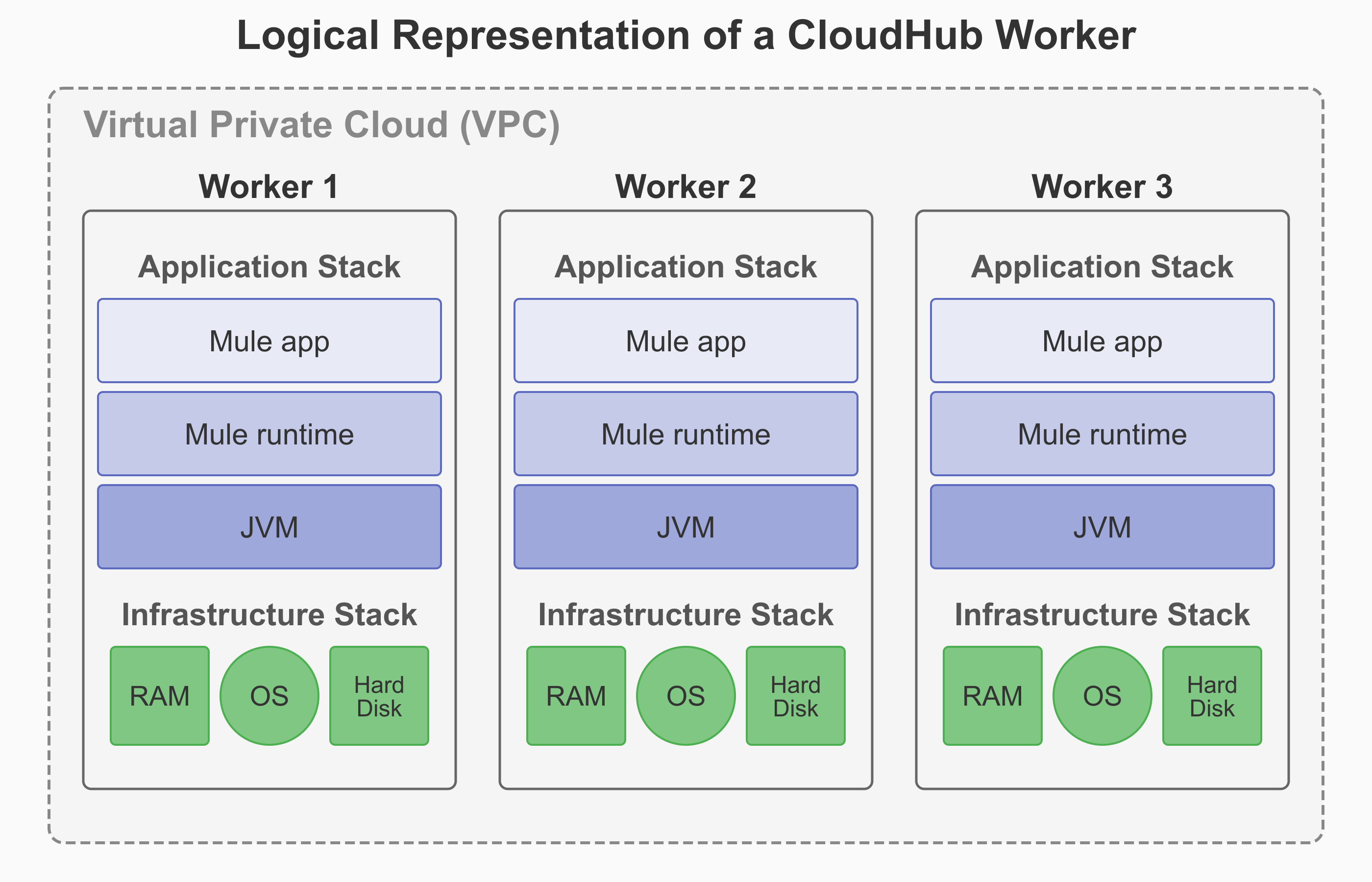
A worker in CloudHub is a dedicated Amazon Elastic Compute Cloud (EC2) virtual machine instance that runs your Mule application. It functions as a full, independent virtual server with its own operating system, memory, CPU resources, and isolated runtime environment. |
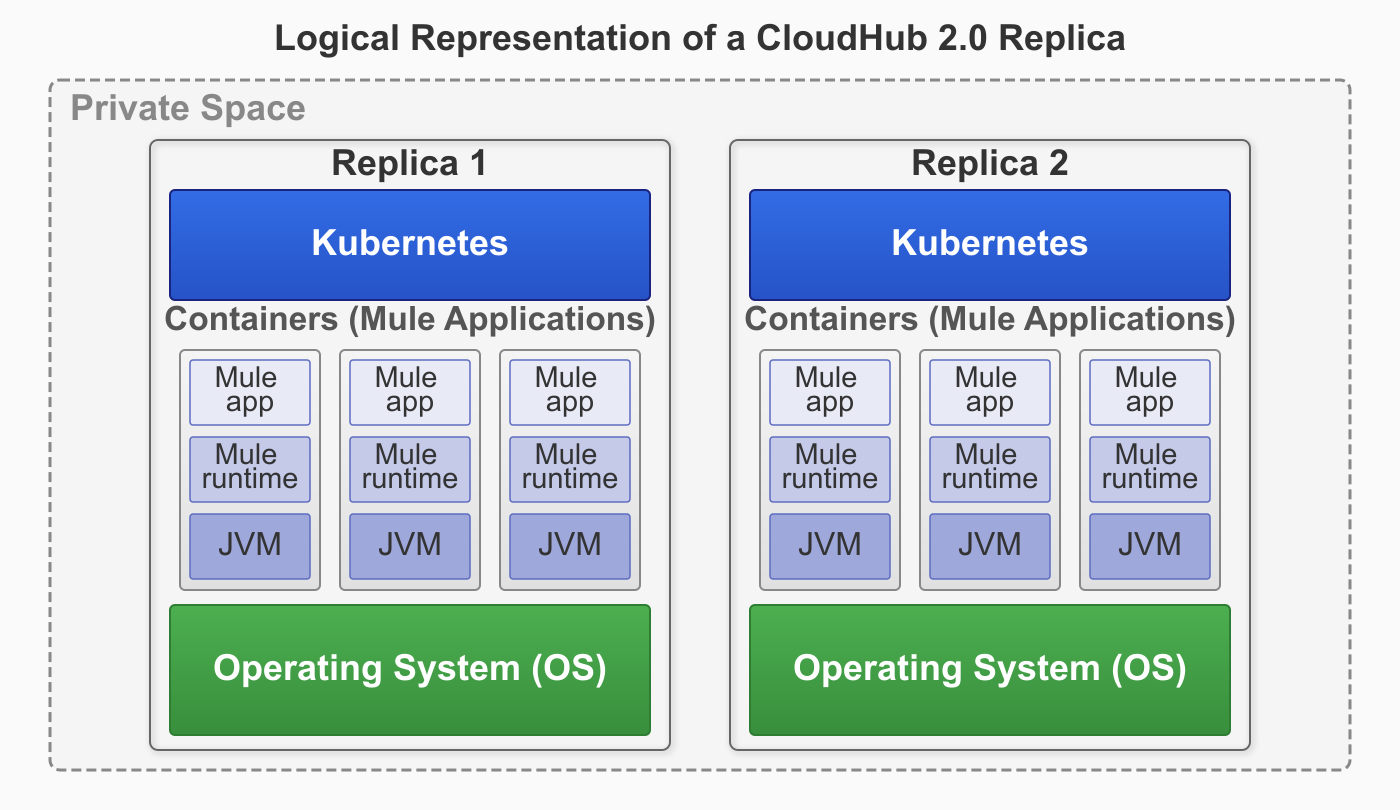
A replica in CloudHub 2.0 is a dedicated, containerized instance of Mule runtime engine that runs your integration application. Each replica provides complete isolation between applications with its own isolated environment, allocated memory (heap and total), CPU resources (vCores), and storage capacity. |
If you select Automatically restart application when not responding, CloudHub monitors the worker and automatically restarts the application if necessary. |
CloudHub 2.0 provides self-healing capabilities that automatically recover applications from both Mule process failures and underlying infrastructure failures. If either the Mule process or the infrastructure fails, CloudHub 2.0 automatically restarts the application on healthy infrastructure without your intervention. Application crash recovery is enabled by default. |
Applications have a two-minute grace period before being marked as failed during startup. |
Applications have a five-minute grace period before being marked as failed during startup. For more information, see Grace Period. |
Application bursting allows workers to temporarily exceed their allocated vCores during traffic spikes. |
Application bursting depends on the resource usage of other applications deployed in the private space and is not guaranteed. |
CloudHub application workers and CloudHub 2.0 application replicas of the same vCore size may differ in performance metrics and cannot be directly compared. When sizing replicas, use performance testing rather than assuming a 1:1 equivalence with CloudHub workers.
High Availability with Clustering
| CloudHub | CloudHub 2.0 |
|---|---|
CloudHub doesn’t support Mule clustering. You can run multiple workers for scale and High Availability (HA), but they’re independent runtimes without cluster semantics. There’s no distributed in-memory state or cluster-aware components. |
CloudHub 2.0 supports Mule clustering. Multiple replicas of the same app form a managed cluster, enabling cluster-aware runtime behavior. This includes shared memory and distributed locking across runtime replicas. Clustering is active-active — all replicas process regular application traffic — but schedulers and polling sources are primary-only: only the primary replica runs them, and a secondary replica takes over if the primary goes down. Without clustering enabled, every replica runs schedulers and polling sources independently, which causes duplicate executions. |
CloudHub scales applications by deploying multiple workers (up to eight) for each application. The SLB automatically distributes traffic across these workers. For applications that need shared state, store that state externally (for example, in a database or Object Store). Workers can’t share in-memory state. |
CloudHub 2.0 scales applications by deploying multiple replicas (up to sixteen) for each application. The platform’s cluster mode coordinates behavior across these replicas automatically. For applications with stateful requirements, use Mule’s native clustered features (such as clustered object stores and clustered caches) to maintain state across replicas. |
CloudHub achieves HA with two or more workers. It supports availability across AZs, and the platform handles failover. |
CloudHub 2.0 provides fully managed HA. The platform automatically spreads replicas across two or more AZs, with round-robin HTTP load balancing and cluster-aware recovery. If you use the VPC upgrade tool, the private space inherits the same number of AZs as the original CloudHub VPC. |
CloudHub monitors workers and automatically performs restarts. Blue-green deployment at the DLB or SLB layer provides seamless cutover, but this process lacks cluster draining and coordination within the runtime. |
CloudHub 2.0 provides orchestrated restarts and rolling updates across replicas. Cluster-aware coordination minimizes impact during upgrades and failures. |
You manage worker counts and rely on external stores for shared state. |
CloudHub 2.0 provides fully managed clustering. Select replica counts, and the platform handles cluster formation, health, placement, and recovery. |
Alert Differences
| CloudHub | CloudHub 2.0 |
|---|---|
CloudHub triggers custom alerts when your application sends notifications to Runtime Manager using Anypoint Connector for CloudHub (CloudHub Connector). For more information, see Custom Application Alerts. |
CloudHub 2.0 enables application deployment success and failure alerts. For custom alerting, CloudHub 2.0 leverages Anypoint Monitoring Alerts. For more information, see Configuring Application Alerts. |
In Anypoint Monitoring, you can set alerts for all apps simultaneously. |
In Anypoint Monitoring, you must set alerts for apps individually. Setting alerts for all apps simultaneously is not supported. |
CloudHub Insights provides basic application analytics and visibility. |
Insights is not supported. Use Anypoint Monitoring instead for application performance visibility and diagnostics. |
CloudHub Features Not Supported in CloudHub 2.0
The following features are not supported on CloudHub 2.0.
-
TLS 1.0 and TLS 1.1 — CloudHub 2.0 supports TLS 1.2 and TLS 1.3 only.
-
Custom notifications using the CloudHub Connector — use Email Connector or Anypoint Monitoring alerts instead.
-
VPN between a CloudHub 1.0 VPC and a CloudHub 2.0 private space — use Transit Gateway or separate VPN connections instead.
-
VPC peering — migrate to Transit Gateway or VPN before upgrading a VPC.
-
Direct Connect — migrate to Transit Gateway or VPN before upgrading a VPC.
-
Peering connections are not migrated when you upgrade a VPC. Delete them manually before or after the upgrade.
Useful Migration Facts
The following details apply during migration.
-
Default VPN HA — VPN connections are created with high availability by default.
-
Transit Gateway is preserved when a private space is deleted — you can delete and recreate a private space without losing TGW attachments.
-
Static IPs and AZ count — If your VPC is deployed across two AZs, it has two sets of inbound static IPs. When you upgrade, the private space inherits the same AZ count (2 AZs → 2 AZs). To use a different AZ count, create a new private space manually instead.
-
Secure properties are write-only — You can change a secure property value but can’t read it back after creation. When migrating, re-enter the values in CloudHub 2.0 settings.
-
Application name uniqueness — In CloudHub, app names are unique per control plane. In CloudHub 2.0, app names are unique per private space.
-
Ingress logs — CloudHub 2.0 provides self-service access to ingress traffic logs through Anypoint Runtime Manager. Use Anypoint Monitoring for app monitoring and log management when available for your subscription tier.
-
Internal load balancer — CloudHub 2.0’s internal ingress load balancer listens on HTTP (80) and HTTPS (443) only. Inbound protocols are limited to HTTP, HTTPS, and TCP (TCP only on newly created private spaces, not upgraded ones).